
Auditing Quill’s performance
Overview
This article explains when to audit Quill, how to perform an audit, and what to do when issues are found.
When and why the team audits Quill
The monitoring team audits Quill when:
A new site has been onboarded
A site generates an unusually high number of intruder alerts
Repeated false intruders occur due to the same visual feature (for example, white shoes or backpacks)
They suspect that motion grids, rules, or detection settings may need adjusting
Regular auditing is important for two key reasons:
1. Improve the data we give Quill
Quill can only work with the information it receives.
If images are low quality, lighting is poor, or site instructions are incomplete, its assessments may be incorrect. Audits help surface these issues so that inputs can be improved.
2. Check how well Quill is performing
Quill uses AI to analyse events and recommend dispositions in real time.
Because this technology is continually learning, your audits help identify patterns, refine rules, and increase accuracy over time.
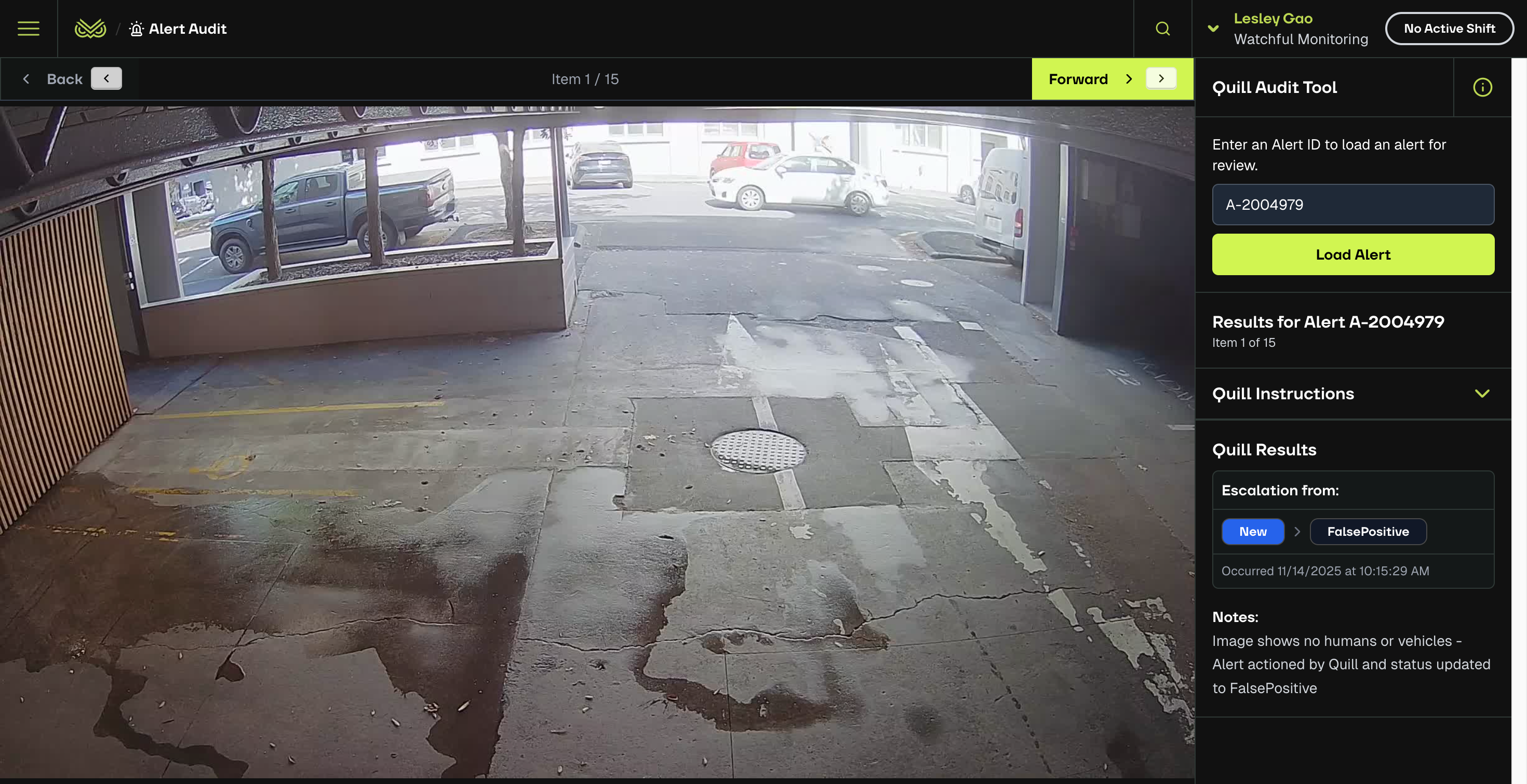
screenshot of Alert Audit page
How to audit Quill
Follow these steps to complete a Quill audit for any site:
From the Dashboard, open the top-left menu and select Alert Log.
Use the Search or Filter to find the alert you want to review.
Click the alert to open its detailed view.
Compare event details:
Review the Activity Log on the right
Compare Quill’s decisions with the snapshots in the Events section
Check whether the recommended disposition was correct
Click Quill Audit in the top-right corner to begin the audit.
Alternatively: go to the menu → Quill Audit, enter the Alert ID, and click Load Alert.
On the audit page, review the Quill Results, including the disposition and Quill’s explanatory Notes.
What to do next
1. Document errors
If Quill assigned the wrong disposition, record:
Alert ID
Time of event
Details of what was misclassified
Pay special attention to cases where Quill failed to detect an intruder or potential intruder.
2. Correct or escalate issues
If the issue can be fixed by updating Quill notes or rules, make the correction or escalate internally.
If image quality or camera configuration contributed to the error, request adjustments from your technical or site admin team.
For unclear or significant issues, submit a ticket through the Help Center or contact your Customer Service representative for assistance.
Result
Regular auditing improves Quill’s accuracy, enhances site performance, and strengthens overall monitoring reliability.
By reviewing alerts consistently, your team helps ensure the system continues to learn and perform at its best.