
Temporarily arming and disarming sites using the Event Schedule
Sometimes you may need to temporarily arm or disarm a site, for example, during holidays, maintenance work, or unscheduled visits.
The Event Schedule lets you easily control when a site is armed or disarmed for a specific period of time.
Before you begin
You must have administrative permissions to access and edit the Event Schedule.
Make sure you know the exact time and date range the site needs to be armed or disarmed.
Confirm that any monitoring officers or site contacts are aware of the change to avoid unnecessary alerts.
Steps
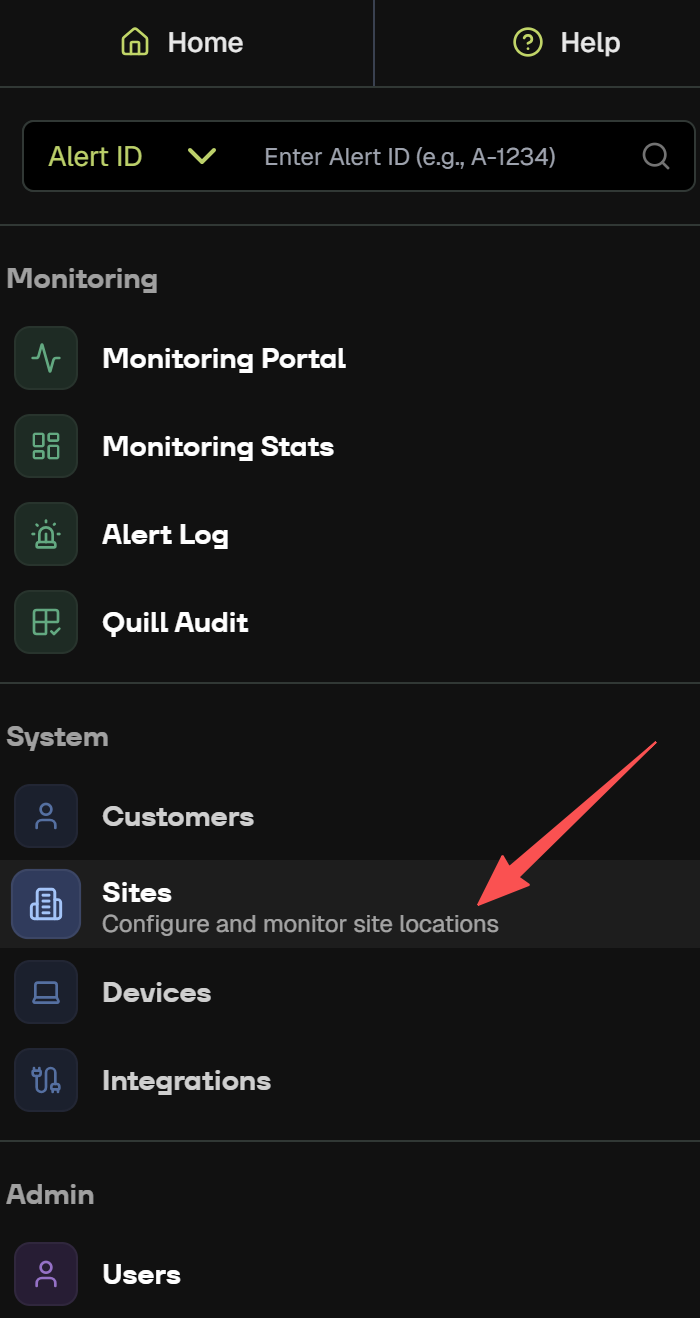
1. Go to the Sites page
From the left-hand menu, select Sites, then choose the site you want to update.
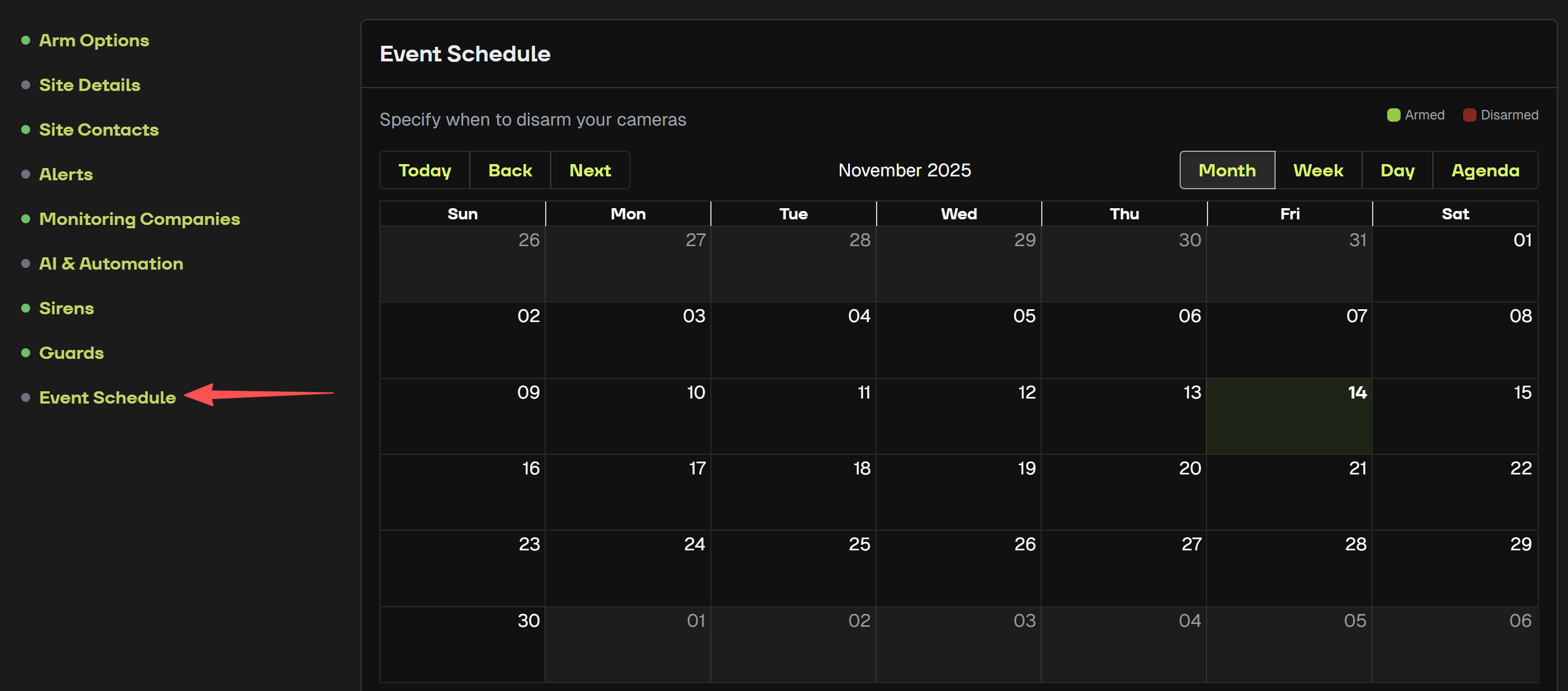
2. Open the Event Schedule
Click Event Schedule, then select the calendar date you want to arm or disarm.
3.Add a new arming or disarming event
Clicking the date opens a form where you can enter the details of your schedule.
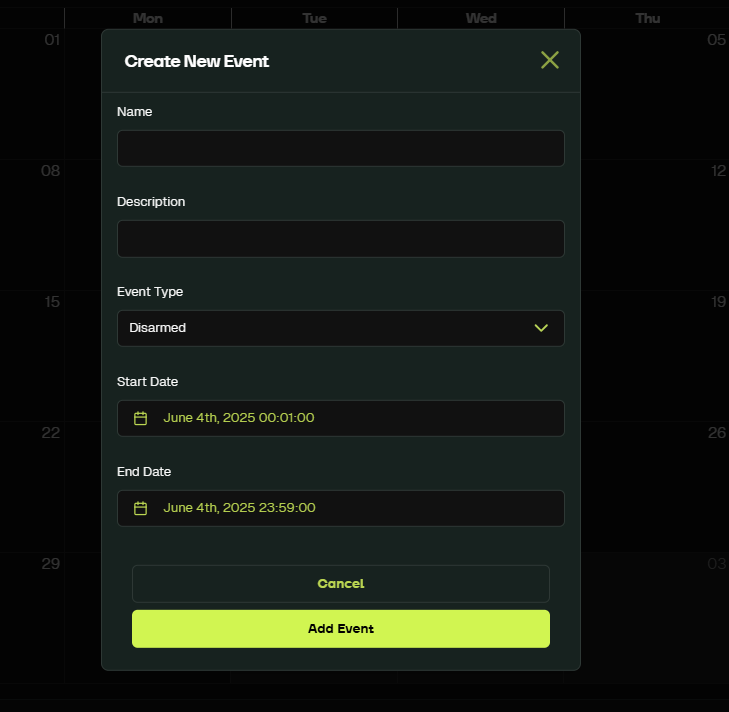
4. Select the event type
Choose Armed or Disarmed under Event Type, then click Add Event.

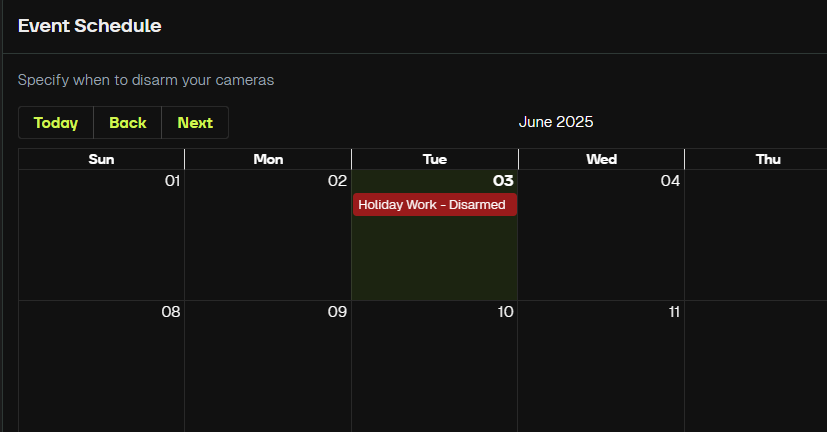
5. Confirm your event
The new arming or disarming event will now appear on your calendar, clearly showing when the site will be active or inactive.
Result
Your site is now scheduled to automatically arm or disarm for the selected time period, helping you manage temporary site access with ease.