
Site tools overview
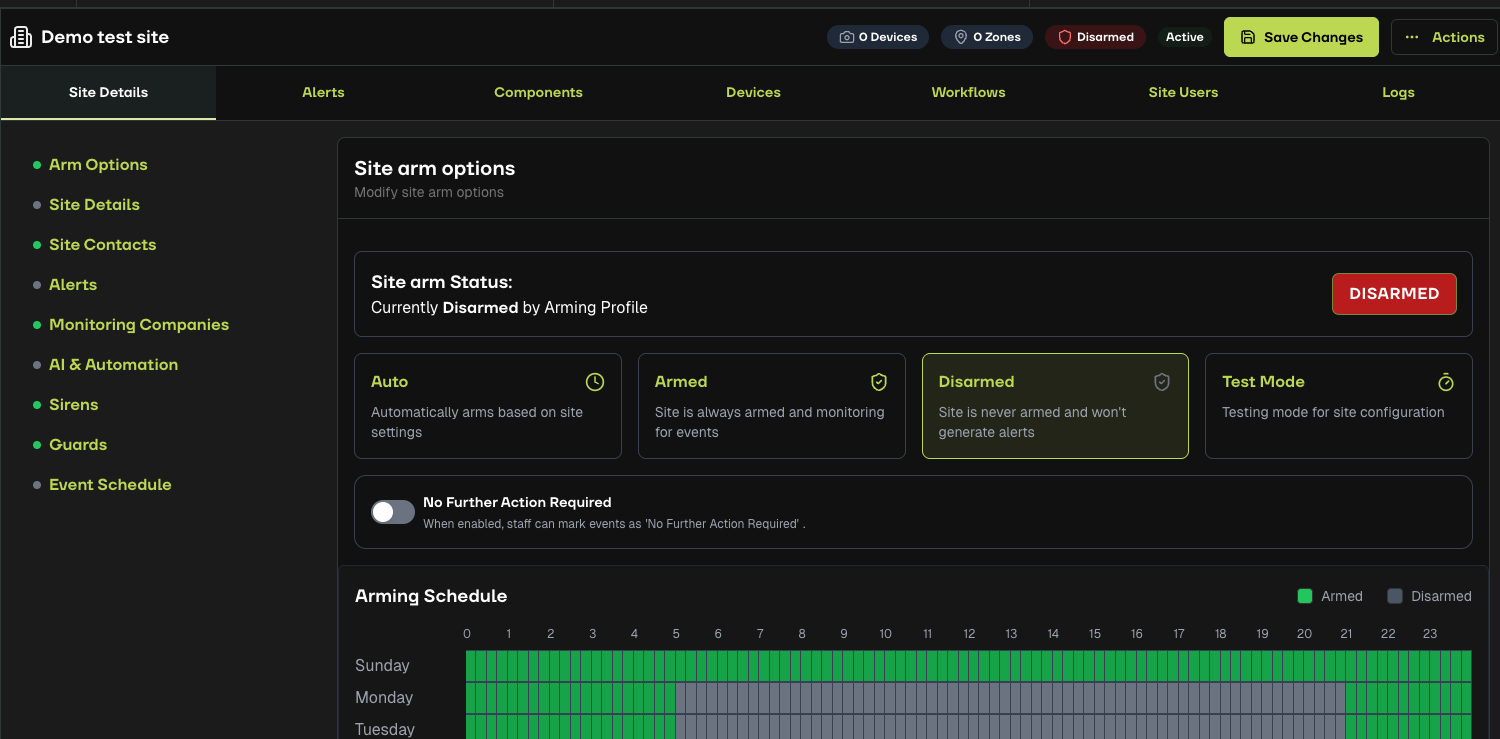
This article provides an overview of the tools available within each site. These tools help you audit alerts, manage schedules for specific cameras, collaborate with the monitoring team, and review activity logs.
Overview
Each site includes a set of tools that give you insight into monitoring activity, camera scheduling, workflow behaviour, and user actions. These tools help you manage site operations and maintain visibility over how monitoring decisions are made.
Tools Included
The Site Tools section includes the following:
Alerts
Components
Workflows
Logs
Each tool is described below.
1. Alerts
The Alerts tab shows every alert and event associated with the site.
You can view:
Images captured during each event
Who actioned the alert
When it was actioned
What disposition was chosen (for example: Intruder, No Threat, Staff)
Notes or comments added by the monitoring team
This is one of the most valuable tools for auditing monitoring activity.
It allows you to review decisions and understand why certain actions were taken.
2. Components
Component is used when individual device need a different schedule from the rest of the site.
This tool is ideal for situations such as:
A camera located far away from the main site area
A camera monitoring an isolated zone
Cameras needing special operating hours
With Components, you can:
Apply a 24/7 schedule to one camera
Set a unique arming/disarming schedule that differs from the main site schedule
While most cameras follow the general site arming schedule, Components allows one or more cameras to operate independently.
3. Workflows
Components allow you to group cameras, speakers, and relays into meaningful areas of your site, regardless of the hardware they come from.
Components help you:
Organise device feeds into logical sections (for example, Front Entrance, Warehouse, Level 3)
Separate remote or isolated devices into their own area
Simplify monitoring by breaking a large site into manageable parts
This gives you flexibility to structure your site in a way that matches the physical layout and improves how alerts are grouped and reviewed.
4. Logs
The Logs tab shows activity related to arming, disarming, and general control of the site.
You can view:
Who armed or disarmed the site
The time these actions occurred
System-level activity
Changes in site configuration
Logs provide transparency and help you understand who is managing your site at any given time.
Result
With Alerts, Components, Workflows, and Logs, you have a complete set of tools to manage and review activity on your site.
These tools support better communication with the monitoring team and give you full oversight of site operations.