
Alerts vs Events
Learn how Alerts and Events work in the Watchful platform and how to use key monitoring features to review site activity efficiently.
Watch: Intro to Watchful Monitoring Basics
Key Terms
Alert
An alert is created when one or more motion-based events —such as a person walking through or a vehicle moving— are detected by your site’s cameras. Each alert has a unique ID and can include images from multiple cameras within the same site or zone.
Events are grouped into a single alert based on a set time window (configured by your administrators). For example, all camera activations within a 30-minute period may be grouped into one alert, giving you full context of what’s happening on-site.
Event
An event is a single image or snapshot captured when motion is detected by a monitored camera. Each event represents a specific moment in time and becomes part of an alert when grouped with other events from the same period.
Event Timeline
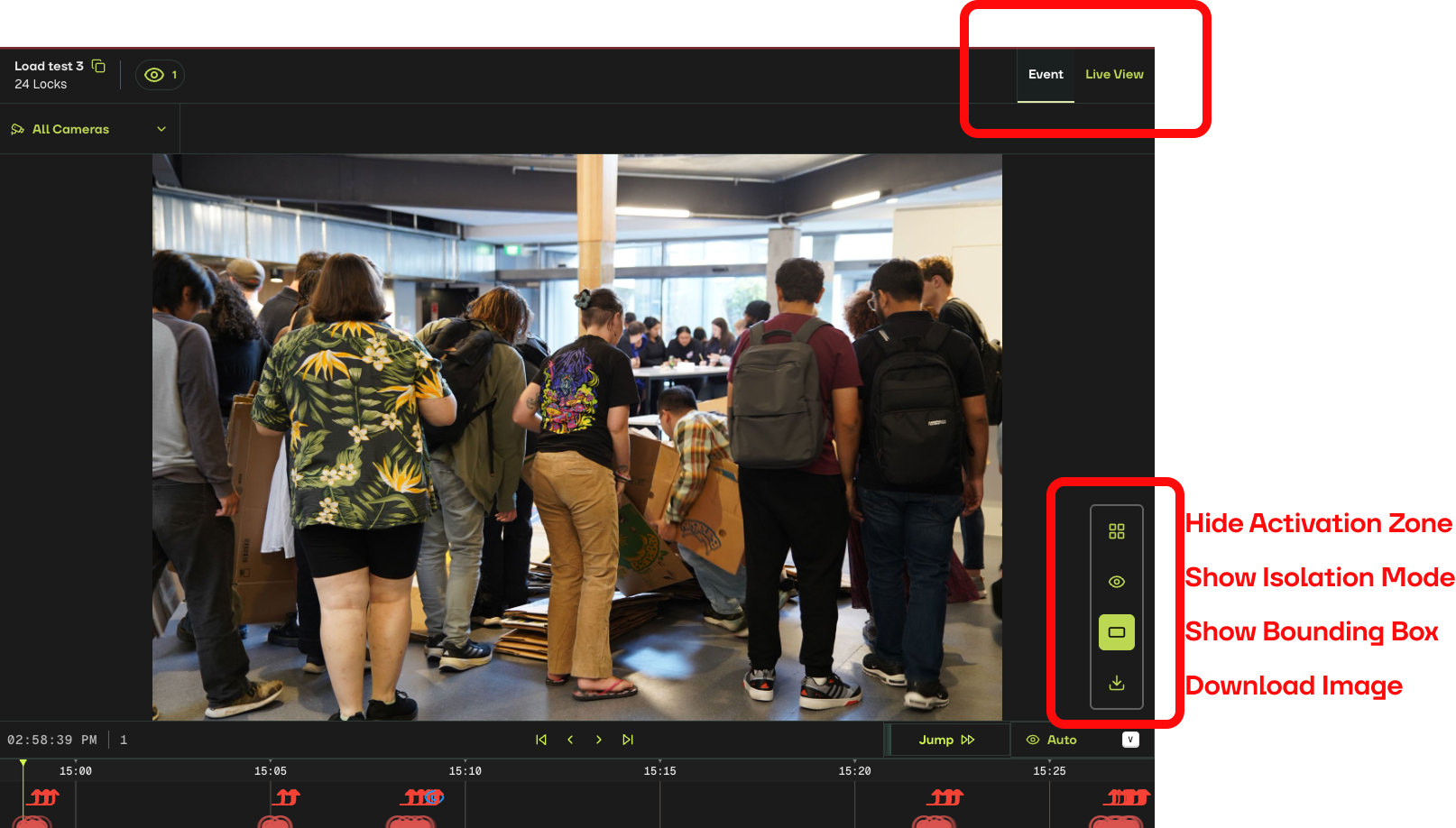
The Event Timeline appears at the bottom of the monitoring screen and helps you view and navigate through all camera detections within an alert.

Each coloured dot on the timeline represents a single Event.
Red dots indicate a person detected.
Blue dots indicate a vehicle detected.
Pulsing dots show unviewed events.
Static dots mark events already reviewed by your team.
You can navigate the timeline by scrubbing forward or backward, zooming in and out, or using autoplay to review events at your chosen speed. The timeline will always start from the most recent unviewed event.
Image Viewing Tools
Several viewing options help you focus on what’s happening within an event snapshot:
Zoom – Click anywhere on the image to zoom in on the area of interest.
Hide Activation Zone – Toggle grids on and off to see which camera zones trigger motion alerts. (If no grids are set, the icon won’t appear.)
Show Isolation Mode – Darkens areas outside the analytic image, helping you focus on key details.
Show Bounding Box – Turn bounding boxes on or off to highlight detected people or vehicles.
Downloading Image - You can select the download icon to save the current event image directly from the alert dashboard.
Live View
If your integration supports it, click Live View to see a split-screen display:
Left pane – Replay of the event that triggered the alert.
Right pane – A live video feed from the same camera.
This feature lets you compare the recorded detection with the current on-site activity in real time.