
Add a new integration
Overview
This guide shows how to set up an integration so Watchful can connect to an external platform (such as a VMS) and pull in sites and cameras for monitoring.
Before you begin
Make sure you have:
Access to the external platform (VMS or device management portal)
A valid host / URL, username, password, or API key.
Permission to create notification rules or webhooks in the external system.
The customer and site already created in Watchful.
Step 1: Select the integration type
Select Integrations from the left-hand navigation.
Click Add New on the top-right corner.
Choose Add VMS or Add External Service
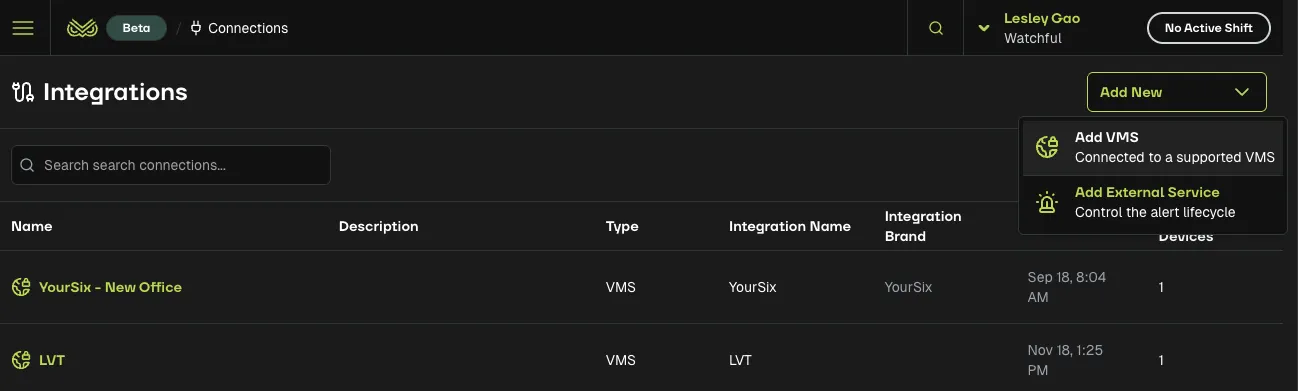
Step 2: Enter connection details
Depending on the platform, you may be asked for:
Connection Name
Description
Host
API Key
UserName
Password
CloudUrl
Follow the fields shown on screen.
Enter the required details.
Click Test Connection.
Click Save External Connection.
Once saved, Watchful attempts to connect and pull a list of available sites or cameras.
Step 3: Confirm that the integration is connected
After saving:
The integration status changes to Connected if credentials are correct.
Watchful will display the number of sites or cameras available through this integration.
If you see Connection Failed, check credentials in the external system and try again.
Step 4: Link an integrated device to a site
Once an integration is connected:
Go to Sites.
Open a site.
Go to Devices tab.
Select Add New Device → Add Device.
Under the Connection Setting section, in the Device Model dropdown, choose the integration you just created.
Watchful will list all available cameras from the VMS.
Choose the correct camera and complete the device setup.
Step 5: Configure notification rules in the external platform
This step is essential.
The external system must send events to Watchful.
In your VMS:
Open the Notification Rules, Analytics Events, or Webhook Settings page.
Create a new rule for each camera you want Watchful to monitor.
Configure the rule to send a webhook to Watchful.
Select the cameras that should send analytics events.
Save the rule.
What this does
When the VMS detects a person, vehicle, or other analytics event, it sends a webhook to Watchful.
Watchful then processes the event, applies Quill automation if enabled, and displays it in the monitoring portal.
Step 6: Verify events are arriving in Watchful
Go to Monitoring Portal in Watchful.
Trigger a test event in the external platform if supported.
Confirm that the event appears under the Alerts tab in Watchful’s Monitoring Portal.
If no events appear, revisit the notification rule in the external system.
Result
Once the integration is connected and the notification rules are configured, Watchful can receive analytics events from the external platform for any linked camera.